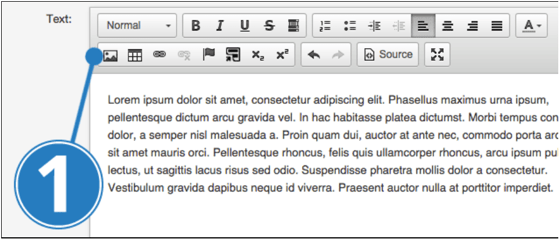
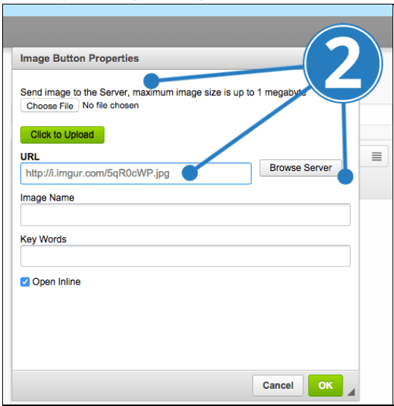
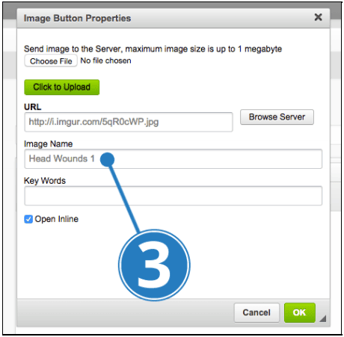
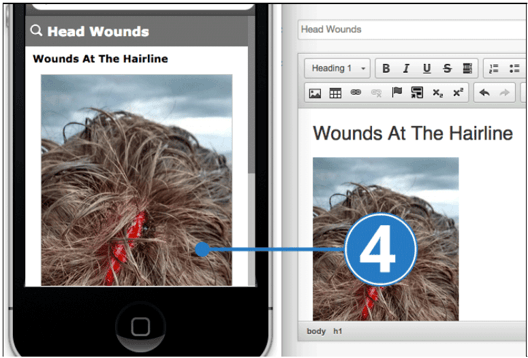
Adding an Image in the eGuides Content Editor Click the ‘Insert Image’ icon in the text editor Choose an image to upload by picking a file from your own computer or server, or by entering an image URL. Give your image a name then click ‘OK’ to insert Preview the image to ensure it is working
![MEG high res strap_logo (trans)-1.png]](https://help.megsupporttools.com/hs-fs/hubfs/MEG%20high%20res%20strap_logo%20(trans)-1.png?height=50&name=MEG%20high%20res%20strap_logo%20(trans)-1.png)